
One of the best ways to receive your email is via the Spark app which you can add to your iPhone/Android.
Step 1
Download and install the app from the Apple App Store or Google Play Store:
App Store: https://apps.apple.com/us/app/spark-mail-ai-email-assistant/id997102246
Play Store: https://play.google.com/store/apps/details?id=com.readdle.spark
Step 2
You will need to create an account with Spark first. I recommend creating your account using your Gmail, iCloud or Yahoo account. Once your account is set up and you are signed in to the app you will be able to add all your other email accounts including your new website email.
Step 3
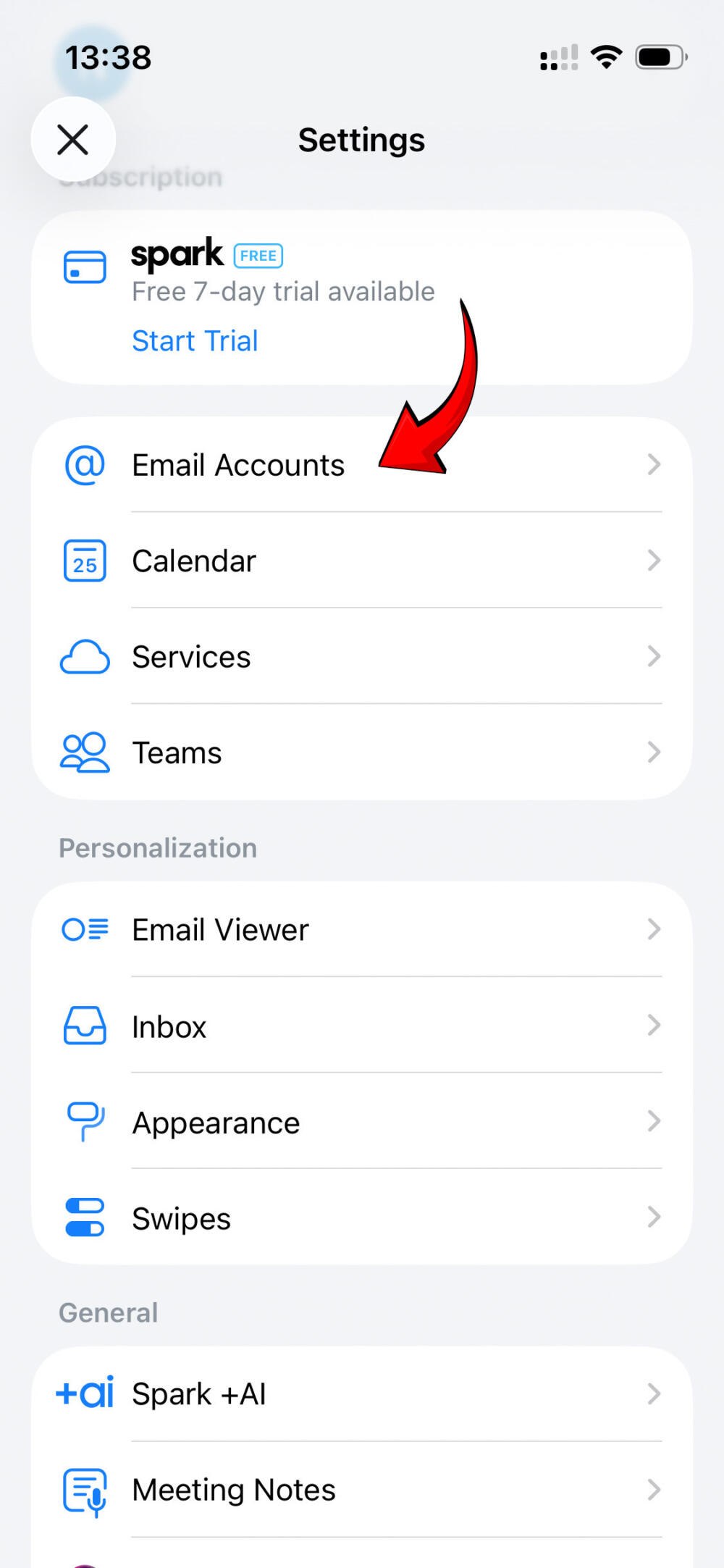
Go to Settings inside the Spark app. Then select the “Email Accounts”.
Step 4
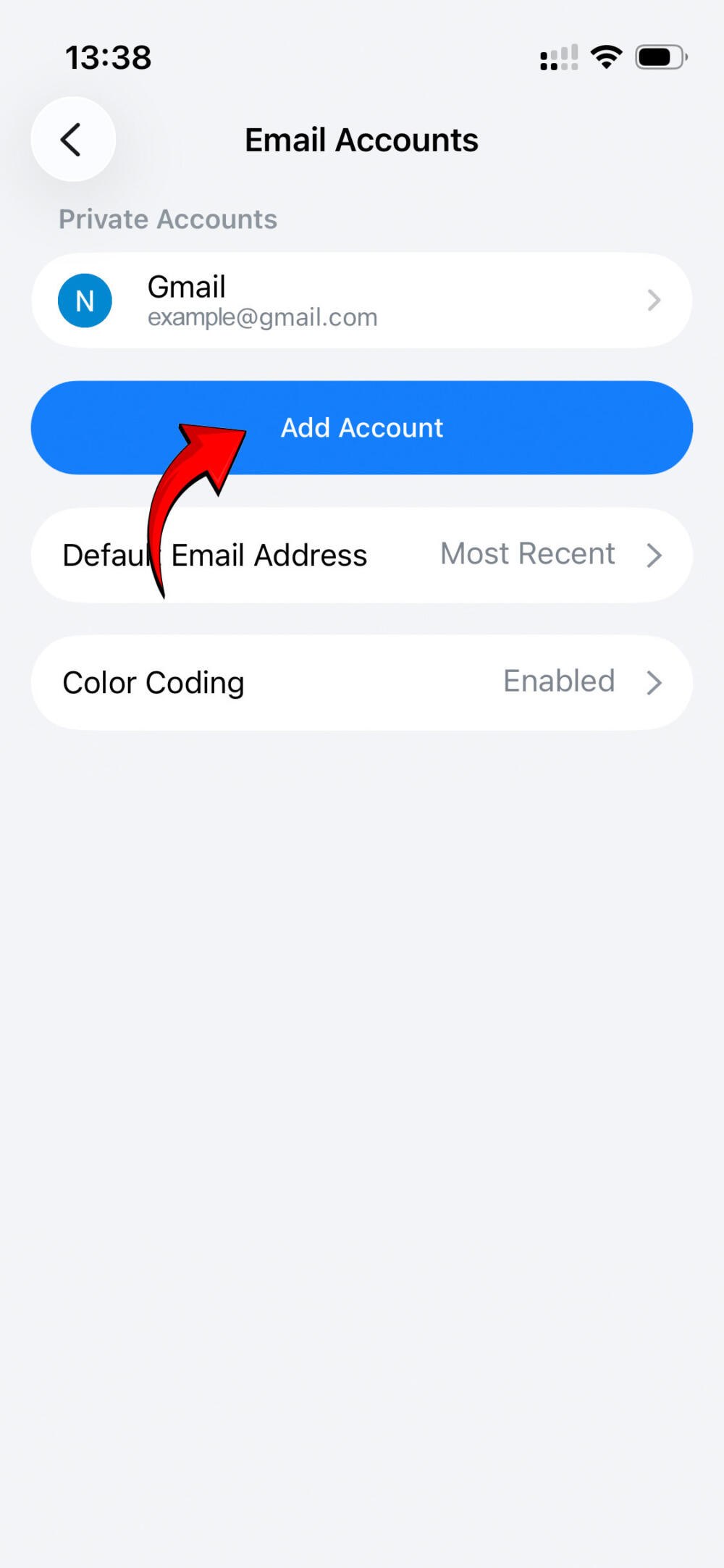
Select the “Add Account” button.
Step 5:
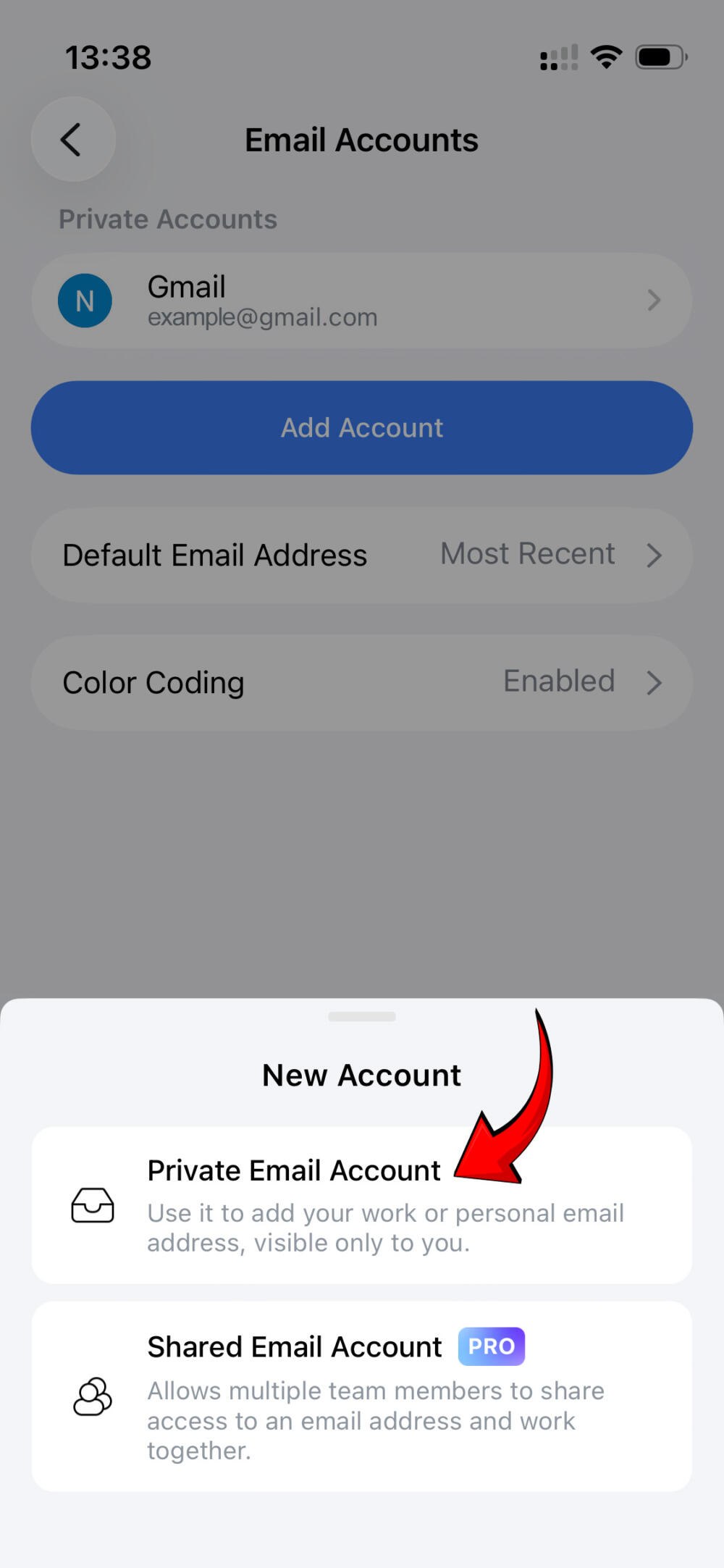
Select “Private Email Account”.
Step 6
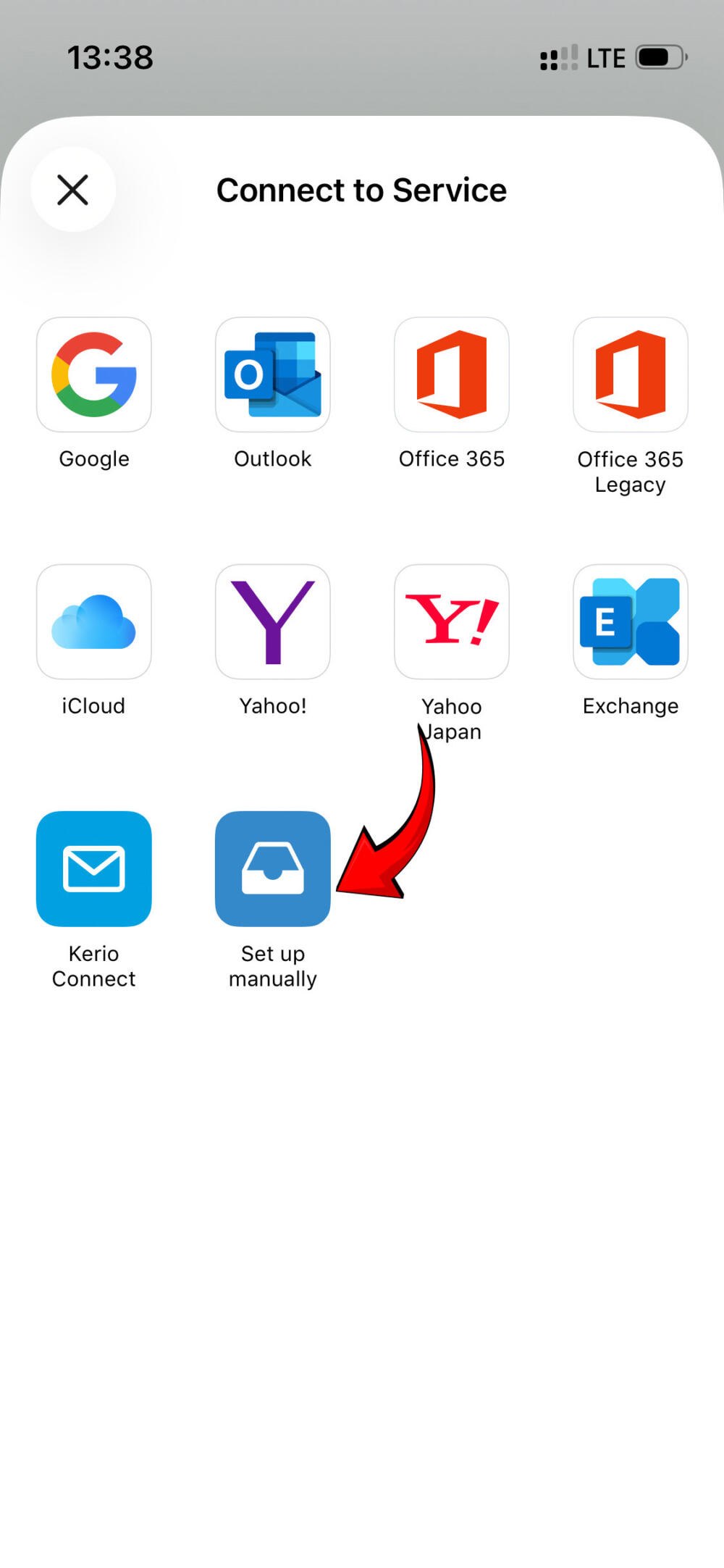
Select “Set up manually”.
Step 7
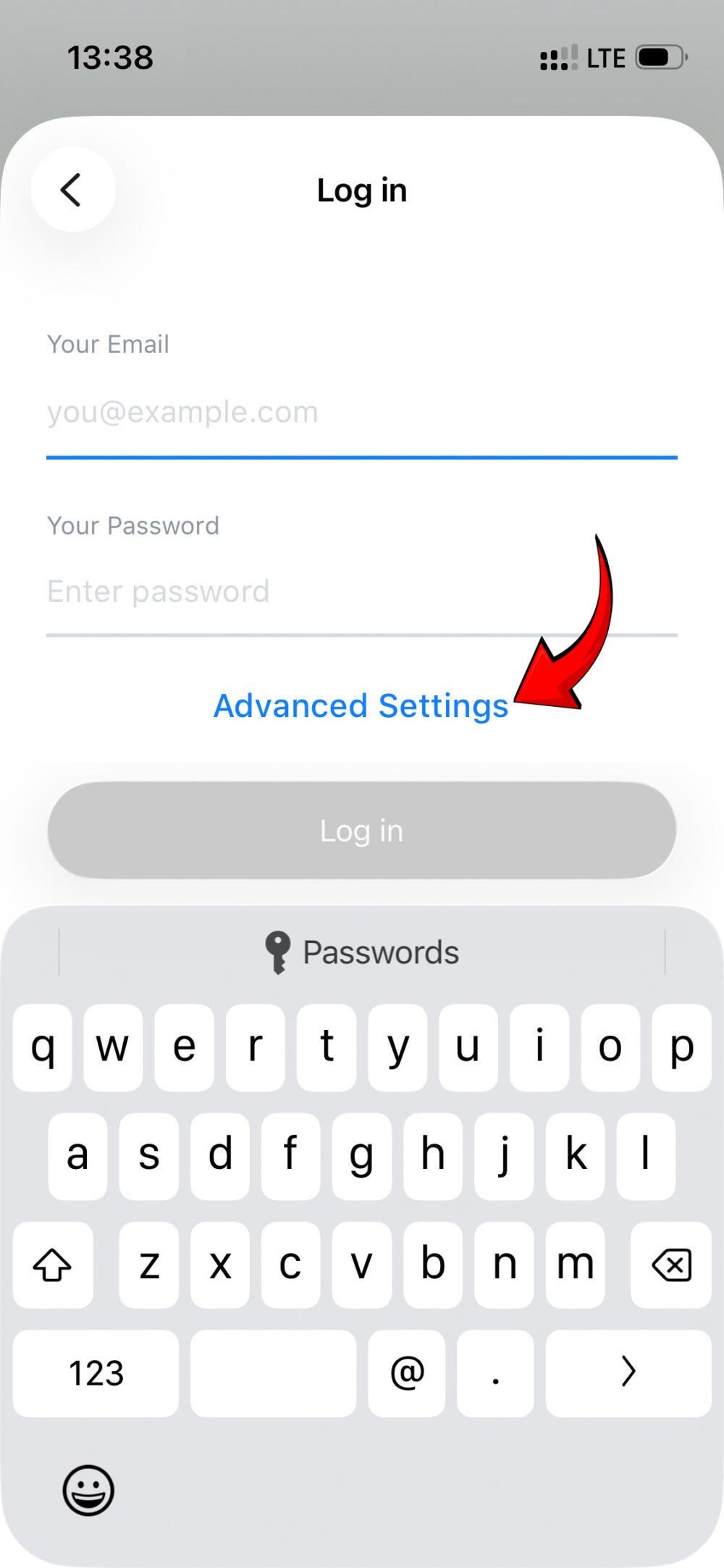
Select “Advanced Settings”.
Step 8
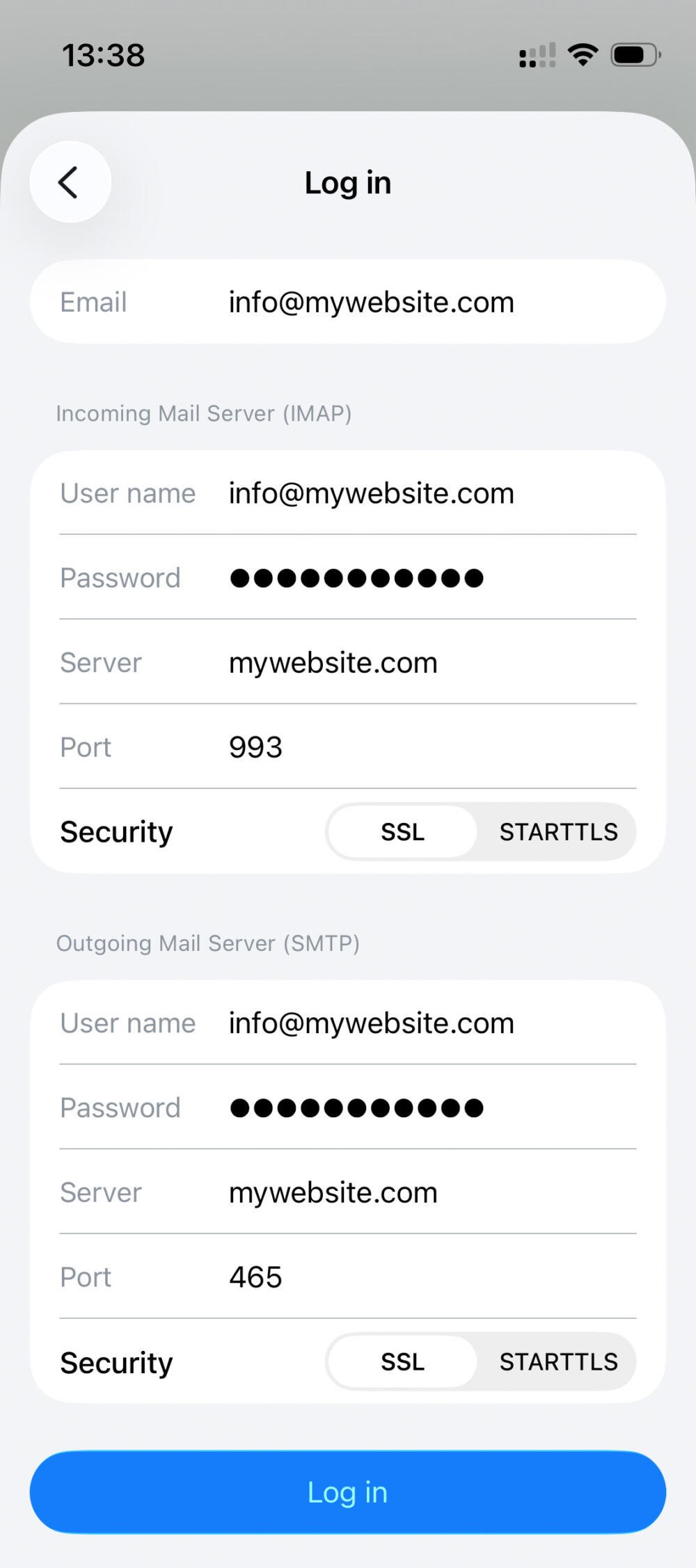
Now you can enter the email credentials you received in the email. You must ensure the Port number for the “Incoming Mail Server (IMAP)” is set to 993, and the “Outgoing Mail Server (SMTP)” is set to 465 and the “Security” setting for both is set to SSL.
Once you are logged in you will be able to configure other settings such as:
Title – the title given to your email inside the Spark app.
Name – the name used when sending emails inside the Spark app, and the name shown to recipients when they receive your email.
Email signature – set up a signature that is added to the bottom of all emails you compose.