
The SR Content Protection allows you to protect specific content anywhere on a page or post and only allow it to be seen after the customer has purchased a specific product. You can either protect the whole page by using the SR Content Protection settings on the page/post you want protected, or use the shortcodes to protect only partial content on the page.
To activate the Content Protection, scroll down to the SR Content Protection settings at the bottom of the page/post and select the “Protect this content” checkbox. Enter the price you want to charge for the content and then click the “Create/Sync Product” button to create the product that will need to be purchased for access. Then save/publish your page/post and it will be protected behind a paywall. To see how it looks, you will need to log out and view the protected page on the front of the website as if you were a normal customer.
To partially protect a page behind a paywall you can use the srwd_teaser and srwd_protected shortcodes. If using the shortcodes you will still need to select the “Protect this content” checkbox, set a price and create the corresponding product, but now only the content specifically added between the srwd_protected shortcodes will be protected.
How It Works
There are two shortcodes available to use, the first one shows teaser content that you want to be seen by everyone and then once they purchase the relevant product that content is replaced by the content in the srwd_protected shortcode.
The First Shortcode – Teaser Content
This shortcode block is optional, but can be useful to show specific teaser content.
The shortcode is in two parts, an opening shortcode and a closing shortcode. Any content that is added between the opening and closing shortcode will be public, and hidden after the relevant product is purchased.
[srwd_teaser]
The content I want to be public
[/srwd_teaser]
The Second Shortcode – Protected Content
The shortcode is in two parts, an opening shortcode and a closing shortcode. Any content that is added between the opening and closing shortcode will be hidden, and only visible once the relevant product is purchased.
[srwd_protected]
The content I want to sell, images, videos, text etc.
[/srwd_protected]
How to Add The Shortcode
To add a shortcode to a page or post, you can simply copy and paste the shortcode into the page content area. It will then automatically create the Shortcode block, sometimes it will not do this though, especially if adding the closing shortcode. So you can instead look for the little black plus square  down the right side of the content area, or the little blue plus square at the top left of the page
  to select the block type you want to add. Type “shortcode” into the search box that opens and then you can select the Shortcode block to insert it into the page.
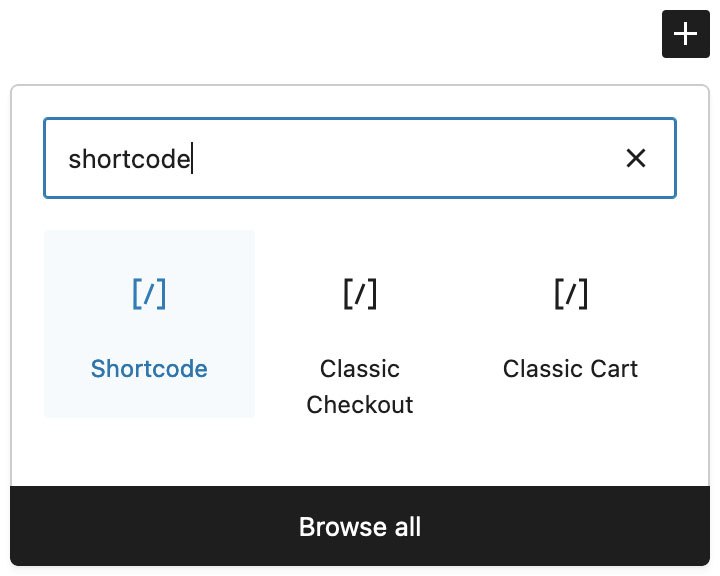
Copy and paste the shortcode into the Shortcode block. A total of 4 shortcode blocks are needed.
You can alternatively also copy the below code directly into your post/page code editor to add all the necessary blocks and layout. To access the code editor, click the 3 little dots in the very top right hand corner of the post/page you are editing and select “Code editor”. Once you have copy pasted the below code you can exit the code editor. Then update the product_id to the correct product ID number and add your content to the SR Masonry Gallery block which is included in the below code, or replace it with a different block/content.
<!-- wp:shortcode --> [srwd_teaser] <!-- /wp:shortcode --> <!-- wp:paragraph {"align":"center"} --> <p class="has-text-align-center"><strong>See my exclusive content, only with VIP access!!</strong></p> <!-- /wp:paragraph --> <!-- wp:shortcode --> [/srwd_teaser] <!-- /wp:shortcode --> <!-- wp:shortcode --> [srwd_protected] <!-- /wp:shortcode --> <!-- wp:heading {"textAlign":"center","level":4} --> <h4 class="wp-block-heading has-text-align-center">Please enjoy my exclusive content below!</h4> <!-- /wp:heading --> <!-- wp:spacer {"height":"30px"} --> <div style="height:30px" aria-hidden="true" class="wp-block-spacer"></div> <!-- /wp:spacer --> <!-- wp:lazyblock/sr-masonry-gallery {"blockId":"2jjNwP","blockUniqueClass":"lazyblock-sr-masonry-gallery-2jjNwP"} /--> <!-- wp:shortcode --> [/srwd_protected] <!-- /wp:shortcode -->
When the page or post is published, it will look something like this:
This content is protected
To view this content purchase access by clicking the button below.